Before you start #
ZenPlus reads successful authentication events from the Security log of each configured on-premises Active Directory Domain Services domain controller. Use an ordinary AD domain account dedicated to this integration. A Microsoft 365 account, Microsoft Graph permissions and an Entra application registration are not used by this collector.
Follow the six setup steps below in order. GUI and PowerShell are alternative ways to perform the same Windows setup; choose one for each step. Windows setup is performed by an administrator with the appropriate delegated rights. The account saved in ZenPlus remains nonadministrative.
| Replace this example | Your value / screenshot demo |
|---|---|
svc_zenplus_udt | Dedicated service-account name; used in the screenshots. |
EXAMPLE / example.test | Your AD NetBIOS name / DNS domain. Screenshots use the product-owned ZENTRYC / zentryc.local demo. |
dc01.example.test | Selected DC FQDN. Screenshot demo: AD.zentryc.local, address 192.168.8.36. |
192.0.2.20 | Actual appliance egress IP for firewall rules. The acceptance appliance is 192.168.8.221. |
Tested from ZenPlus 1.24.13 on the development appliance against a Windows Server 2025 demo DC. A newly created ordinary account passed authentication, WinRM-session and Security-log checks. The installed collector read 29 user events in the tested 30-minute window, covering event IDs 4624, 4768 and 4769. The demo used NTLM with message encryption over HTTP 5985; this was not an HTTPS acceptance test.
The two group memberships initially returned Access denied. Adding Read and Execute on that DC’s WinRM service for the dedicated account resolved it. No administrative group or audit-management privilege was granted. Device-correlation regressions passed separately in a disposable test database.
Minimum access checklist #
| Capability | Grant | Not required for UDT login collection |
|---|---|---|
| Read Security events | Event Log Readers, with an effective Security-channel Read entry. | Manage auditing and security log; log-clear access. |
| Open the collection session | Remote Management Users; check effective WinRM service / Windows Shell permissions. | Administrators, Domain Admins, Enterprise Admins. |
| WinRM service access | If the group alone is insufficient, allow Read + Execute for the dedicated account on each selected DC (step 4). | Full Control, Write, broad ACL replacement. |
| Reach the selected listener | Firewall allows the appliance source IP to the chosen WinRM port. | RDP, SMB, DCOM or general WMI access for this UDT query. |
| Read user activity in ZenPlus | udt.view_users or udt.manage. Controller onboarding requires an appliance administrator. | Giving every inventory viewer access to user login activity. |
Domain Users is the account’s normal primary group. Add only the two groups above for this baseline, then verify the effective WinRM and Security rights. Performance Log Users, Backup Operators, Account Operators and extra WMI namespace grants are not part of this setup. A Windows credential test can pass UDT checks even when optional operating-system inventory is unavailable.
On domain controllers, the Builtin groups are domain AD groups; membership is not limited to the DC on which you add it. The explicit WinRM account grant in step 4 is applied per DC. If you require strictly per-DC event-log scope, use a dedicated security group and approved channel/service ACL delegation instead of domain-wide Builtin membership.
The current collector uses the standard WinRM Windows Shell provider. Read/Execute permits nonadministrative command execution; it is not an event-ID-only/JEA endpoint. Apply your service-account restrictions, approved credential rotation and network isolation.
01 Step 1 — create the dedicated AD account #
GUI — administrator setup
- Open Server Manager → Tools → Active Directory Users and Computers (
dsa.msc). Expand your domain and choose the approved service-account OU. The demo uses the Users container. - Right-click that OU/container → New → User. Set display name ZenPlus UDT Reader and user logon name
svc_zenplus_udt. Use your own AD domain suffix. - Set a strong unique password privately. Clear User must change password at next logon so unattended collection can authenticate. Keep the account enabled and use your organization’s service-account rotation policy; do not make Password never expires a requirement.
- Open the new user’s Properties → Member Of → Add. Add Event Log Readers and Remote Management Users. Use Check Names, then save. Keep Domain Users as the primary group.
- Verify that the account has no direct or nested administrative group membership. It does not need interactive or RDP sign-in rights.
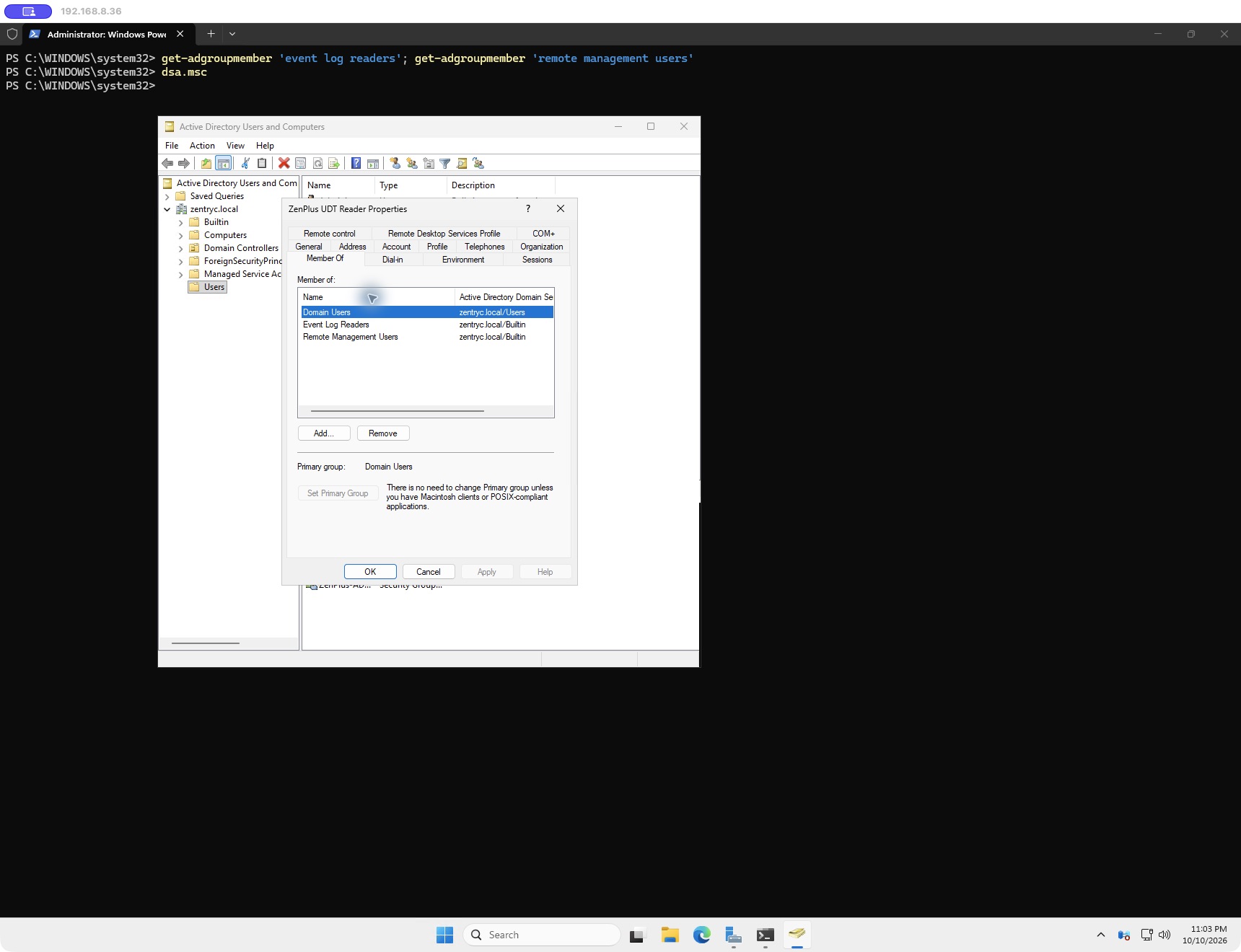
PowerShell — administrator setup
# Run locally as an AD administrator with delegated user/group setup rights.
Import-Module ActiveDirectory
$Account = 'svc_zenplus_udt'
$DnsDomain = 'example.test'                 # replace
$ApprovedOU = 'OU=Service Accounts,DC=example,DC=test' # replace
$Password = Read-Host 'Service-account password' -AsSecureString
New-ADUser -Name 'ZenPlus UDT Reader' -DisplayName 'ZenPlus UDT Reader' `
  -SamAccountName $Account -UserPrincipalName "$Account@$DnsDomain" `
  -Path $ApprovedOU -AccountPassword $Password -Enabled $true `
  -ChangePasswordAtLogon $false
# Well-known SIDs work independently of localized group names.
Add-ADGroupMember -Identity 'S-1-5-32-573' -Members $Account # Event Log Readers
Add-ADGroupMember -Identity 'S-1-5-32-580' -Members $Account # Remote Management Users
Get-ADPrincipalGroupMembership $Account | Select-Object Name
Expected result: The dedicated account is enabled, has the two required groups, and remains nonadministrative. The password is never placed in a command-line argument, screenshot or support log.
02 Step 2 — verify successful authentication auditing #
GUI — administrator setup
- Open Group Policy Management (
gpmc.msc). Edit an approved policy linked to the Domain Controllers OU and scoped to the selected controllers. Follow your organization’s change process. - Navigate to Computer Configuration → Policies → Windows Settings → Security Settings → Advanced Audit Policy Configuration → Audit Policies.
- Under Logon/Logoff → Audit Logon, configure Success. Under Account Logon, configure Success for Audit Kerberos Authentication Service and Audit Kerberos Service Ticket Operations. Preserve any existing Failure auditing.
- Apply the approved policy. Check effective results with
auditpolon each selected DC; an editor setting alone does not prove which policy won. - Open Event Viewer → Windows Logs → Security → Filter Current Log. Enter event IDs
4624,4768,4769. Inspect recent Audit Success events after a normal approved domain authentication.
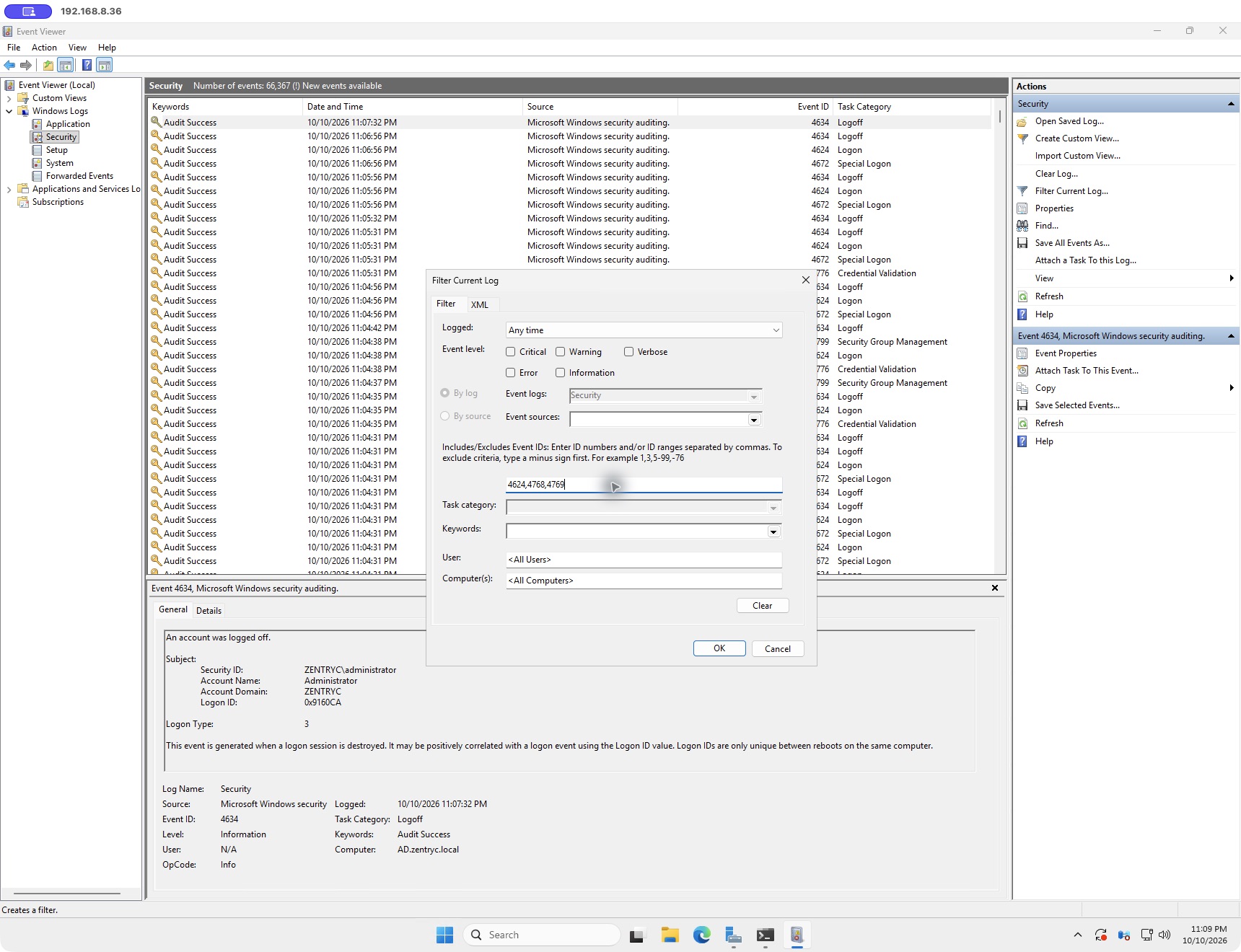
PowerShell — administrator setup
# Read effective policy on each DC (English subcategory names).
auditpol /get /subcategory:'Logon'
auditpol /get /subcategory:'Kerberos Authentication Service'
auditpol /get /subcategory:'Kerberos Service Ticket Operations'
# Only if local audit policy is approved and not controlled by central GPO:
auditpol /set /subcategory:'Logon' /success:enable
auditpol /set /subcategory:'Kerberos Authentication Service' /success:enable
auditpol /set /subcategory:'Kerberos Service Ticket Operations' /success:enable
# These /set commands retain the existing Failure setting.
Get-WinEvent -FilterHashtable @{
  LogName='Security'; Id=4624,4768,4769; StartTime=(Get-Date).AddMinutes(-30)
} -MaxEvents 10 | Select-Object TimeCreated,Id,RecordId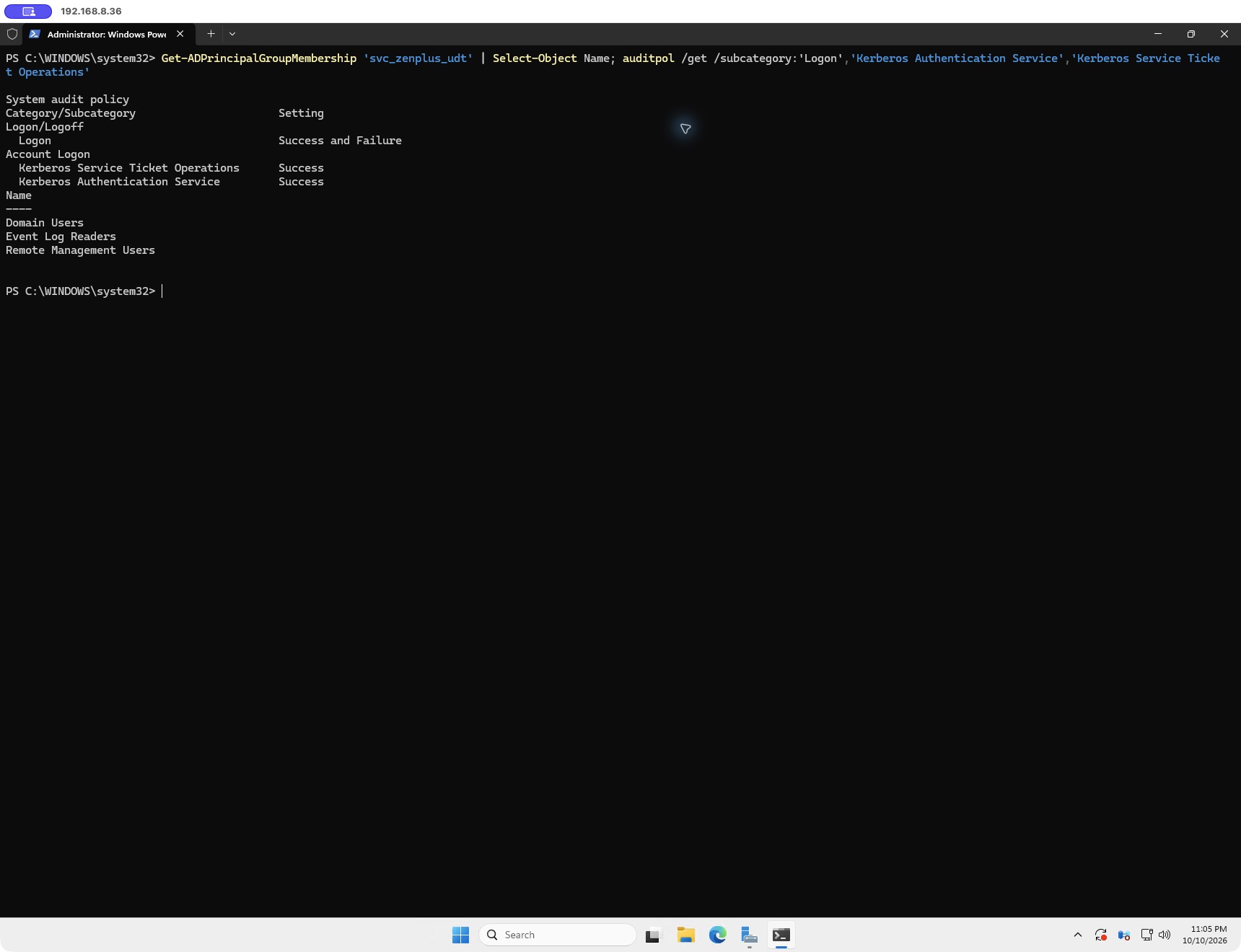
Expected result: All three subcategories include Success. Event Viewer or Get-WinEvent shows matching recent events when the corresponding authentication occurs. Failure-only auditing cannot populate successful user activity.
Audit subcategory names are localized. Use auditpol /list /subcategory:* to find the installed names. Keep DC clocks synchronized and retain Security events long enough for collection to catch up.
03 Step 3 — choose the listener and restrict the source #
GUI — administrator setup
- On the selected DC, open Server Manager → Local Server and inspect Remote management. Confirm WinRM is enabled under the approved server policy. Check the actual listener with
winrm enumerate winrm/config/listener. A running service alone does not prove that a listener exists. - For HTTPS 5986, obtain an approved Server Authentication certificate for the DC FQDN with a private key. Open
certlm.msc→ Personal → Certificates, import it if necessary, and verify its name, validity and intended purpose. Configure the listener with the PowerShell example below. - Open Windows Defender Firewall with Advanced Security (
wf.msc) → Inbound Rules → New Rule → Custom. Select TCP and the chosen port. In Scope, allow the appliance’s actual source IP. Allow the connection on the approved Domain profile and name the rule clearly. - Review existing firewall/GPO/network rules: an additional narrow rule does not override another broad Allow rule. Preserve other management tools and existing approved listeners.
PowerShell — administrator setup
# Inspection: no configuration changes.
Get-Service WinRM
winrm enumerate winrm/config/listener
winrm get winrm/config/service

# Approved HTTPS setup only after PKI has issued the correct certificate.
$DcFqdn = 'dc01.example.test'               # replace
$Thumbprint = '<APPROVED_CERTIFICATE_THUMBPRINT>'
$ApplianceIP = '192.0.2.20'                 # replace with egress IP
Get-Item "Cert:\LocalMachine\My\$Thumbprint" |
  Format-List Subject,DnsNameList,NotAfter,HasPrivateKey
Set-Service WinRM -StartupType Automatic
Start-Service WinRM
# Create only if a suitable HTTPS listener does not already exist.
New-Item -Path WSMan:\localhost\Listener -Transport HTTPS -Address '*' `
  -Hostname $DcFqdn -CertificateThumbprint $Thumbprint
New-NetFirewallRule -DisplayName 'ZenPlus UDT WinRM HTTPS' -Direction Inbound `
  -Action Allow -Protocol TCP -LocalPort 5986 -RemoteAddress $ApplianceIP `
  -Profile Domain
Recommended production transport: HTTPS 5986 using the certificate’s FQDN and a chain trusted by the appliance. Run the appliance connection test to confirm trust. If an internal CA is not trusted, have the appliance administrator/Zentryc support configure the approved trust chain.
Approved alternative, used in this demo: an existing HTTP 5985 listener with NTLM and mandatory message encryption. Keep AllowUnencrypted=false and Basic=false. The current collector refuses Basic over HTTP and validates HTTPS certificates. Enabling Basic, unencrypted traffic, TrustedHosts=* or certificate-validation bypass is not a permission fix.
Expected result: The appliance can reach the chosen listener, and transport/authentication settings match the Windows credential. The firewall exposure is limited to approved sources.
04 Step 4 — verify Security read and WinRM Read/Execute #
Group membership and effective permissions are separate checks. The demo Security channel already granted Read to Event Log Readers, but the WinRM service did not grant the new account a usable session. The additional per-account Read + Execute grant below was necessary.
GUI — administrator setup
- From an elevated command prompt on the selected DC, run
winrm configsddl default. This opens Permissions for Default. - If the dedicated account already has the required effective access, retain it. Otherwise click Add, select your domain, enter
svc_zenplus_udt, use Check Names and confirm that this is the dedicated account. - Select that account. Allow Read (Get, Enumerate, Subscribe) and Execute (Invoke) only. Leave Write and Full Control unchecked. Preserve every existing unrelated permission entry.
- Save the approved grant and test a fresh connection from ZenPlus. Repeat on each selected DC; do not grant it globally to all domain users.
- Verify Security-channel Read using the command below and the appliance’s Security event-log check. Do not grant Manage auditing and security log to make a read query succeed.
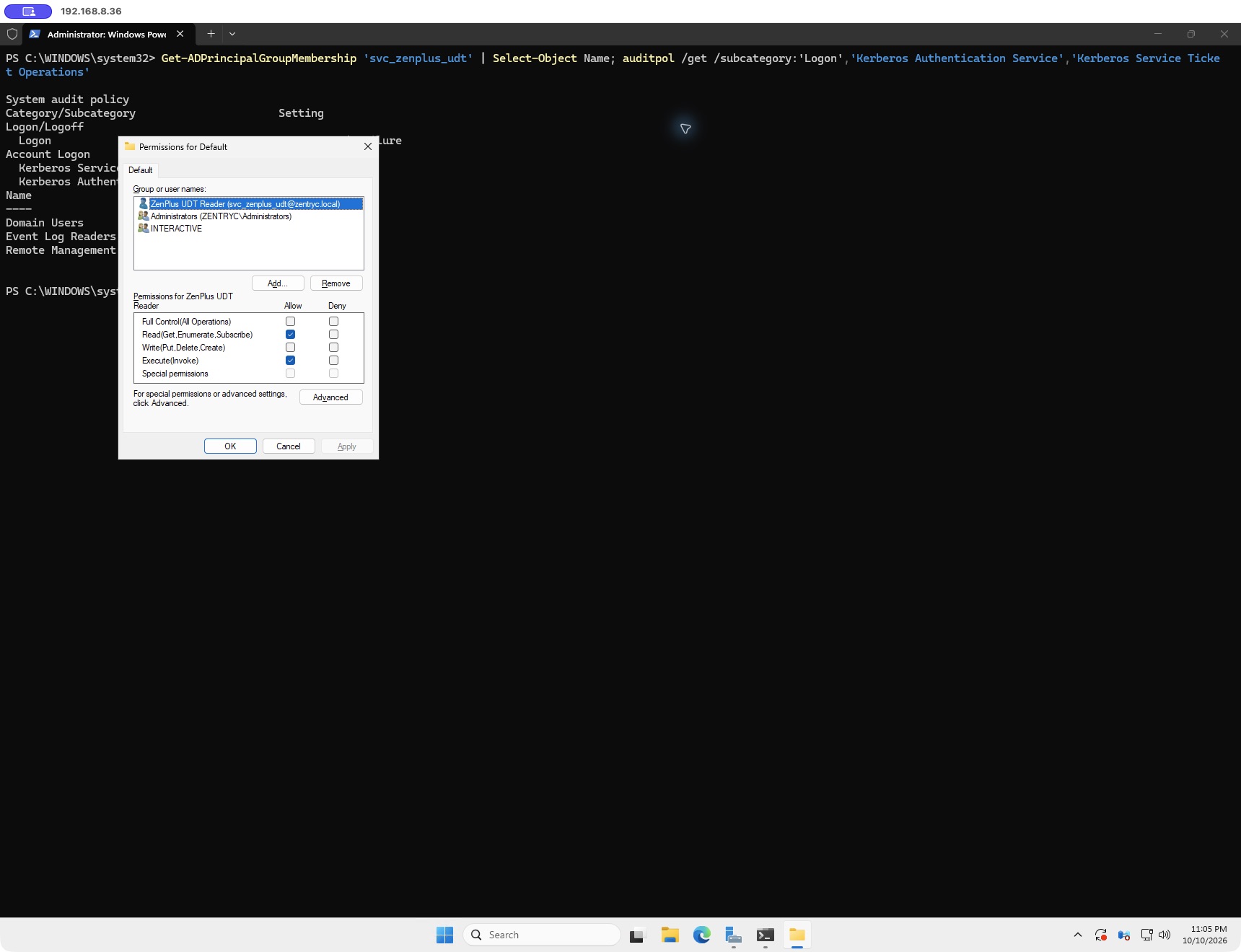
PowerShell — administrator setup
# Read-only Security-channel check: Event Log Readers SID should have Read (0x1).
wevtutil gl Security
# Inspect the WinRM service descriptor.
Get-Item WSMan:\localhost\Service\RootSDDL

# Apply only on approved selected DCs when the account lacks effective access.
# Run elevated as the setup administrator, not the collector.
$Account = 'svc_zenplus_udt'
$Sid = (Get-ADUser $Account).SID
$Before = (Get-Item WSMan:\localhost\Service\RootSDDL).Value
# Keep a protected copy of $Before in your change record for rollback.
$Descriptor = [System.Security.AccessControl.CommonSecurityDescriptor]::new(
  $false,$false,$Before)
$ReadExecute = [int]-1610612736 # GR | GX, signed 0xA0000000
$Descriptor.DiscretionaryAcl.AddAccess(
  [System.Security.AccessControl.AccessControlType]::Allow,
  [System.Security.Principal.SecurityIdentifier]$Sid,
  $ReadExecute,
  [System.Security.AccessControl.InheritanceFlags]::None,
  [System.Security.AccessControl.PropagationFlags]::None)
$After = $Descriptor.GetSddlForm(
  [System.Security.AccessControl.AccessControlSections]::All)
Set-Item WSMan:\localhost\Service\RootSDDL -Value $After -Force
# Verify the actual account from the appliance; do not replace the whole ACL.
Expected result: A fresh appliance session can run the collection query and read Security events without administrator membership.
If a hardened GPO or Windows Shell provider ACL still denies execution, review that effective policy with the Windows security administrator. A change to a PowerShell session endpoint alone does not guarantee access to the standard Windows Shell provider used here. The demo did not require a WinRM restart or an additional WMI grant.
05 Step 5 — save and test the Windows credential #
Use the dedicated account here, never the administrator who performed Windows setup. Open Administration → Credentials → Windows → New credential.
| Field | Value |
|---|---|
| Name | UDT event reader (the screenshot test uses UDT least privilege demo). |
| Username | svc_zenplus_udt |
| Domain | Your AD NetBIOS name, e.g. EXAMPLE; do not repeat it in Username. |
| Password | Enter the dedicated account password privately. Never include it in screenshots or commands. |
| Domain controller | Selected DC FQDN for HTTPS; the approved demo used 192.168.8.36. |
| Authentication | NTLM for this tested procedure, subject to your Windows authentication policy. |
| Transport / port | HTTPS / 5986 for approved TLS setup; HTTP / 5985 only with approved NTLM message encryption. |
| Certificate verification | Keep validation enabled. The current UDT collector validates HTTPS certificates. |
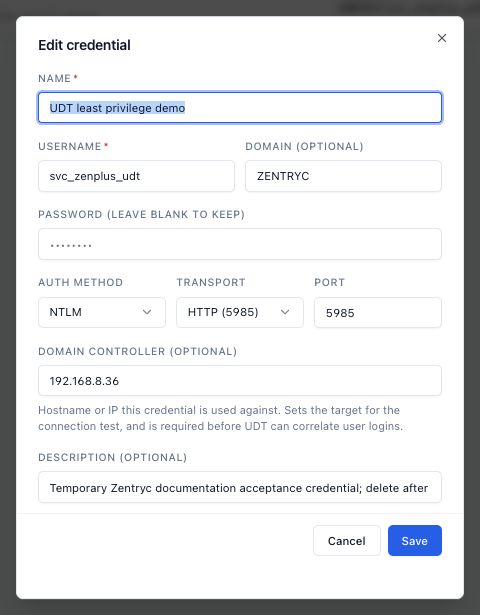
Save. On that credential’s row choose Test the connection to the domain controller → Run test. Confirm the target is the selected DC.
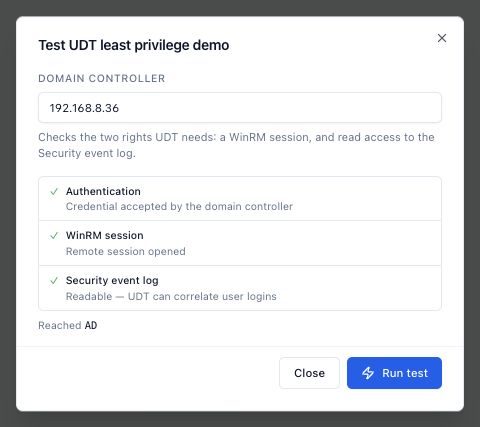
Expected result: All three checks pass. “Reached AD” or unavailable optional OS inventory does not require additional privileges when the three UDT checks are successful.
PowerShell / command-line — optional connection diagnostic
# Optional diagnostic from a domain-joined Windows validation host.
# runas prompts for the password; no password argument is used.
runas /netonly /user:EXAMPLE\svc_zenplus_udt cmd
# In the new command window, exercise Windows Shell and Security read:
winrs /r:https://dc01.example.test:5986 /noprofile powershell.exe -NoProfile -NonInteractive -Command "Get-WinEvent -LogName Security -MaxEvents 5 | Select-Object TimeCreated,Id,RecordId"
# If testing the approved encrypted HTTP alternative, use its http:// URL/5985.
# Do not add /unencrypted. The appliance test is the final connection check.
06 Step 6 — add the controller and validate collection #
GUI — administrator setup
- Open Device Tracker → Tracker Settings → Active Directory controllers → Add DC.
- Set a recognizable Name and the same approved Host / IP used in the credential test. Choose the tested dedicated-account Windows credential. Start with a 300-second poll interval.
- Click Add once for that selected DC. Avoid duplicate enabled entries for the same controller. Repeat for the other DCs whose Security events you need.
- Use the controller’s Poll now action. Verify status ok, a recent Last poll and no error. A successful zero-event poll is valid when no matching events exist in the collection window.
- Using an approved test user on a known domain workstation, perform a normal domain authentication. Record its client IP, source DC and time. After a collection cycle, open User Logins and search that username.
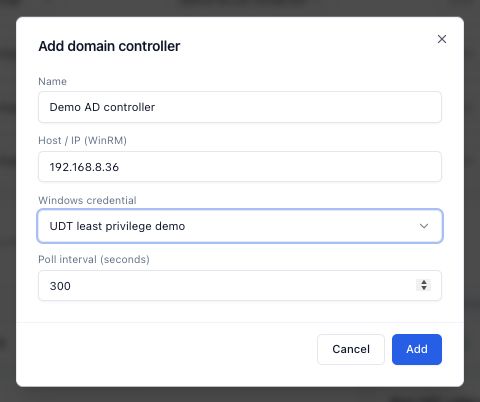
Expected result: The source reports ok and the expected recent user authentication appears. A workstation/device link additionally requires valid endpoint IP history; use the checks below.
The first poll starts with a recent 30-minute lookback. Each poll reads oldest-first, up to 500 matching events, and advances its checkpoint across excluded records as well. This is not an unlimited historical import. On busy DCs, measure the event rate and collection lag before adjusting the interval; do not assume a shorter interval solves every backlog.
Read the login evidence correctly #
| Event ID | Meaning | Interpretation |
|---|---|---|
| 4624 | Successful logon on the machine recording it. | Check Logon Type and client address. A DC Security log does not include every workstation-local desktop logon. |
| 4768 | Successful Kerberos ticket-granting-ticket request. | May associate an account with a client IP. |
| 4769 | Successful Kerberos service-ticket request. | Authentication activity, not proof of a continuous interactive desktop session. |
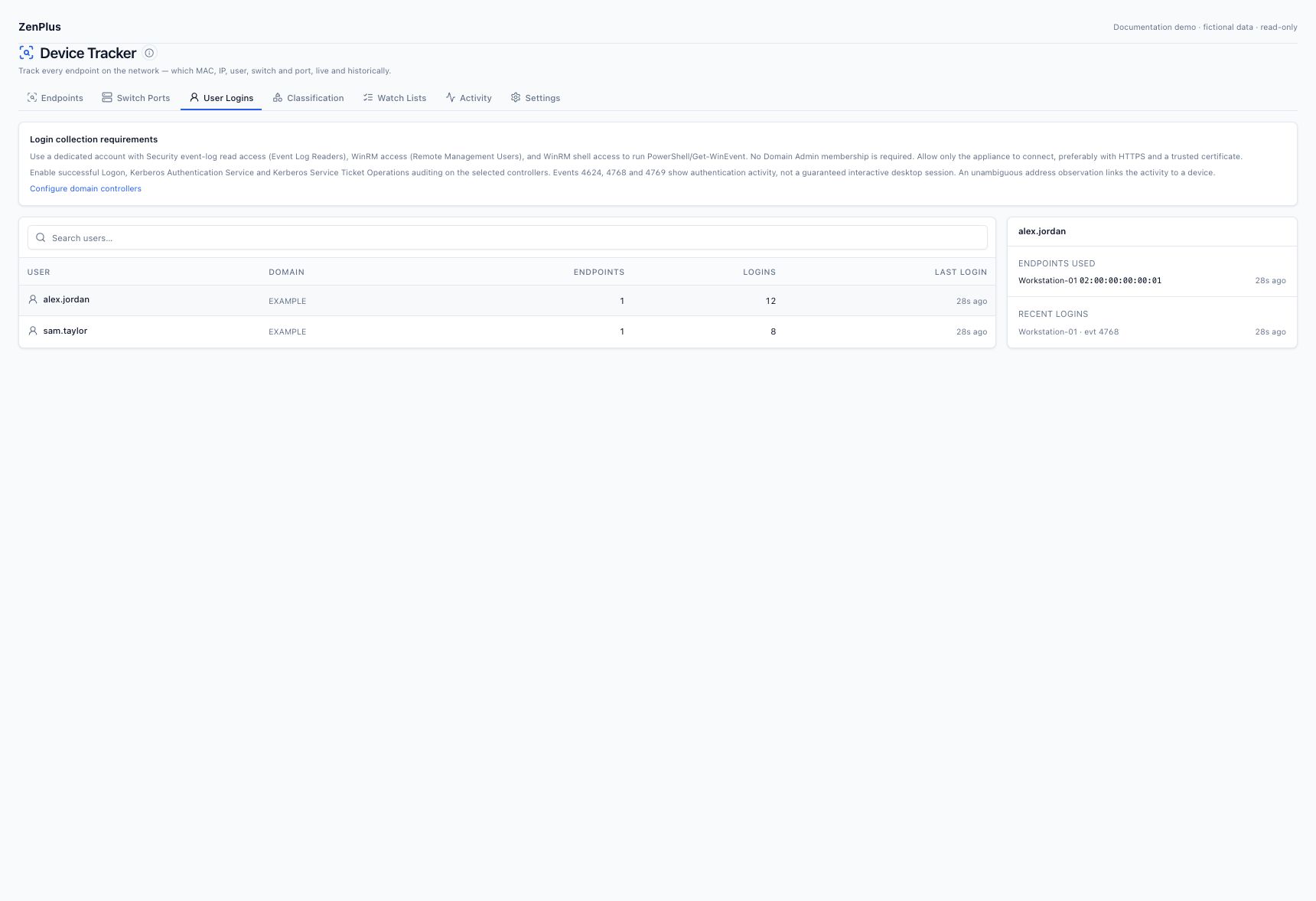
Machine accounts ending in $, built-in system identities and failed Kerberos events are excluded from new user collection. Local/no-client-address events can remain unassigned. Historical records are retained.
Verify the user-to-device link #
- Confirm the expected user event exists on the selected DC and appears in ZenPlus with the correct event time.
- Confirm the event contains the workstation’s valid client IP; local loopback, missing addresses, proxy/NAT addresses and shared IPs cannot prove a unique workstation.
- Open Device Tracker → Endpoints. Verify that the expected endpoint has IP-history observations covering the event time, from the appropriate switch/gateway polling source.
- Select the user in User Logins, open its correlated endpoint, then compare MAC, IP history, switch/port and time. Current IP ownership alone is insufficient.
The collector links one unambiguous endpoint candidate at the event time. Conflicting address history remains unassigned. A unique workstation-name fallback is considered only when a usable client IP is absent.
The real demo proved minimum-permission collection. Its existing login history had no matching endpoint links for the demo authentication addresses. The separate disposable-database regression verified unique-address mapping and rejection of ambiguous addresses. Do not treat a successful credential test or an illustrative endpoint screenshot as proof that your network’s IP-to-MAC history is complete.
Resolve the failing gate #
| Result | Next action |
|---|---|
| Authentication fails | Check domain/username formatting, password rotation/expiry, lockout and allowed NTLM policy. Do not add groups to fix a bad password. |
| Authentication succeeds; WinRM Access denied | Verify the two groups, then the account’s effective service Read/Execute grant in step 4 and any GPO/Windows Shell deny. Retest a new session. |
| Session opens; Security event log fails | Verify Event Log Readers and Security-channel Read; inspect policy denies. Do not grant log-management or administrator rights. |
| Timeout / connection refused | Check appliance egress address, chosen port, routing, firewall and listener. |
| Certificate error | Repair DC FQDN/SAN match, validity and appliance CA trust. Keep certificate checks enabled. |
| Poll ok; no expected user | Check successful audit policy, correct source DC, event time/lookback, excluded machine/system identities and backlog. |
| User appears; no endpoint link | Check event-time endpoint IP history, client-IP presence, NAT/shared addresses and ambiguity; see the correlation checklist. |
| Windows Server OS information unavailable | If Authentication, WinRM and Security checks pass, UDT has the required access. Optional OS/WMI inventory is a separate requirement. |
A collector shell/profile compatibility error should be investigated as a shell problem. Keep the account nonadministrative. winrs /noprofile is an optional diagnostic; the appliance’s own connection/collection result is authoritative.
Operate and maintain the integration #
- Document the account owner, selected DCs, approved network sources, grants and rotation schedule. Update the saved credential when the account password rotates, then rerun the three checks.
- Keep Windows Security-log retention and poll throughput large enough for peak authentication volume. Restrict access to user-history pages and exports.
- The current username/password integration does not accept a gMSA as a drop-in replacement, and does not automatically select a custom JEA endpoint.
- For a temporary tutorial account, remove its temporary appliance credential, reverse only its own WinRM grant using your recorded before/after state, then delete that temporary AD user. Preserve normal users, existing grants, source configuration and login history.